Finding time to update my blog page on a regular basis is proving to be harder than I first expected.
Due to work and family commitments, finding the extra hour a week is almost impossible, with this being the first chance to update the site in weeks!
I have now created a Facebook page to also assist those who have purchased a UBCD536-PT Scanner or CFA members who have the UBCD436-PT Scanner.
You can view the Facebook page via this link.
Search - https://www.facebook.com/Ozscan-1931730523719390/?ref=hl
Sunday, January 31, 2016

Tuesday, January 12, 2016
Sunday, November 1, 2015
Victorian CFA - How to set up for the P25 System.
For those who feel confident enough to have a go at setting up the Victorian CFA Digital Network on their UBCD396XT Scanner - I have added a quick instructional video to YOU TUBE.
You will however need the control channel for your location to be able to set it up.
If you are unsure of the control channel needed for your location, please feel free to e-mail me and I can help find or provide the information relevant to your location.
You can also check this video out on how to locate the Control Channel for your location.
https://www.youtube.com/watch?v=aVLY8hwL1NI
E-mail me at ubcd396xt@outlook.com
To check the video out - click the link below.
https://www.youtube.com/watch?v=1mR1adTNGOk
Enjoyed the Video? If there is something else you wish to see, send me an e-mail and I will see what I can do.
Sunday, January 11, 2015
Ozscan - Contact Details.
You can contact me direct as of September 2018 via e-mail at ozscan@outlook.com
Friday, June 20, 2014
Single Frequency Entry - Creating a New System & Group
How to store an individual frequency into a SYSTEM.
To store a frequency you have to create a SYSTEM to store it
in.
You can put the frequency into a pre-configured system but
if the frequency you wish to store relates to the FIRE Dept and your only
existing SYSTEM is a Police SYSTEM it would make no sense and add confusion by
putting a FIRE Dept Frequency in a POLICE Dept SYSTEM. This would be the equivalent in an older
Scanner of putting a Fire Frequency in a Police ‘Bank’ with all the Police
Frequencies.
By creating separate SYSTEMS you can then allocate them
Quick Key to turn them on or off similar to turning a ‘Bank’ on or off on older
Scanners.
First thing you have to do is obviously have the correct
frequencies ready that you wish to store.
For this example we will use – 491.350 NFM
Push the MENU Button.
PROGRAM
SYSTEM should be Highlighted.
Push YES.
Select System should be displayed at the top of the screen.
Using the Scroll Dial – rotate it left or right until New System is
Highlighted.
Push YES.
Select Sys Type should be displayed at the top of the
screen.
Using the dial rotate it left or right until Conventional is
highlighted.
Push YES.
The Scanner will now ask to Confirm?
Push YES.
Now the number of the System you have created will be
displayed at the top of the screen.
And Edit
name will be highlighted.
At this point you can change the name of the SYSTEM to
something more user friendly instead of a simple number.
Push YES.
Edit Name will be displayed at the top of the screen.
The current SYSTEM number will also be displayed.
To remove this current text from the screen and re-name the
SYSTEM, push the decimal point or NO button twice.
You now have a blank entry point to create your own SYSTEM
name.
For example let’s call it FIRE DEPT.
To enter FIRE DEPT – Use the scroll dial to rotate left or
right until the letter you wish to use is highlighted.
The first one we want is F.
Once F
is highlighted, push the 6 button.
This will move the cursor to the right so you can enter the
next letter, I.
Using the scroll dial – repeat the process until FIRE has
been entered.
Now to make a space between FIRE and DEPT simply push the 6
button twice after the E in FIRE, to create a space.
Once the text entry has been completed and FIRE DEPT is
on the screen you can save it now by pushing the YES button once.
The SYSTEM now has a name. (FIRE DEPT)
FIRE DEPT will now be highlighted on the top of the screen.
Using the scroll dial – rotate it down until Edit System Option is
highlighted.
Push YES.
Set
Quick Key will be highlighted.
At this point you can now allocate a Quick Key to the SYSTEM
so you can turn it on or off quickly via the scanners keypad.
Now if you don’t already have a SYSTEM that has a quick
key you can put number 1 in if you want?
You can have as many SYSTEMS allocated to the same number
as well.
For example – Some users will allocate ALL their
EMERGENCY SERVICES SYSTEMS to quick key ONE.
And their PUBLIC SYSTEMS to quick key TWO.
Then they can alternate between what they want to listen
to with the push of two buttons.
Push the YES button to set your Quick Key button.
Using the scroll dia,l rotate to highlight number 1.
Push YES to save your selection.
Now to enter the Frequency – you need to Push the Menu
button to return to the previous Menu.
FIRE DEPT should be displayed at the top of the screen.
Edit
System Option will be highlighted.
Using the scroll dial rotate it until Edit Group is
highlighted.
Push YES.
Select Group will be displayed at the top of the screen.
New
Group will be highlighted.
Push YES.
Group 1 will be displayed at the top of the screen and Edit Name will be
highlighted.
Push YES.
Repeat the process as mentioned before to change the name
of the Group.
Edit Name
will be highlighted.
Push YES.
Push the NO button twice to clear the current text.
Inside each SYSTEM you have groups. These groups can be useful to
store relevant frequencies for each individual user inside the Fire Dept
System.
For example Your System is called the FIRE DEPT, but
inside that SYSTEM you may want to create a series of smaller individual groups
that relate to other users that all come under the FIRE DEPT `Umbrella’.
There might be `Dispatch’ would be Group 1
Rescue might be Group 2
Recovery might be Group 3
Each Group may have four or five individual frequencies
allocated to their ‘Section/Region/Area.’
We won’t get to involved in this just yet as this is a
whole other section, so for today’s lesson stick with one group!
Let’s call this group `Local Region’.
Once you have typed in `Local Region’
Push YES to save your text.
Now the top of the screen should show LOCAL REGION.
Using the scroll dial rotate it until Edit Channel is
highlighted.
Push YES.
Finally after all your hard work you can now enter the
frequency!
Select Channel will be displayed at the top of the screen.
New
Channel will be highlighted.
Push YES.
Now you can type in 419.350 (or whatever your frequency may
be.)
Now push YES to save.
Now the frequency will be displayed at the top of the
screen.
Edit
Name will be highlighted.
At this point you can now give the frequency a name if
you desire!
Handy when they actually use the frequency as your
scanner will then display the users name.
419.350 may be your Regional Fire Dispatch frequency – so
typing in Reg Dispatch, means it will come up on the scanners screen when they
talk.
If you want to name the frequency – repeat the text input
method as explained earlier.
Once you have entered the name of the frequency,
Push YES to save your changes.
Now at this point you are pretty much ready to scan this
frequency.
You have created a SYSTEM and you have created a group
inside the SYSTEM to allocate the frequency to.
Now all you have to do is push the SCAN button and your in
business!
If you want to check its going correctly you should see FIRE
DEPT come up on the screen and a small number representing your SYSTEM showing
on the SO line of the scanners screen.
(SO meaning SYSTEMS OPERATING)
Good luck.
Saturday, June 14, 2014
Victorian CFA Digital - Database. (FREEScan)
Victorian Emergency Services Data base.
Includes Victorian CFA - All regions.
Victorian Regional Police - while still available to listen.
Plus SES and Melbourne Metro Radio System (P25 Digital)
This data base has been an ongoing development and the latest version is available now for $30.
The initial file will be e-mailed to you and a back up copy on CD posted directly to your address.
Also includes a copy of Freescan software and relevant set up instructions required to enable the UBCD396XT to accept the data file.
You will require a computer with a serial port connection or purchase a USB to serial port adaptor to connect your scanner to your computer. I can also supply these or check out your local electronics store - DSE or Jaycar. etc.
Take the headache out of trying to manually set up your scanner with this complete load an go file.
I can also customise the file to suit your exact location.
If you would like to purchase a copy, please e-mail me at ubcd396xt@outlook.com
I am more than happy to assist in helping you load the file and as previous users of the file will tell you, I'm only a phone call away should you require help - NO CHARGE!
Includes Victorian CFA - All regions.
Victorian Regional Police - while still available to listen.
Plus SES and Melbourne Metro Radio System (P25 Digital)
This data base has been an ongoing development and the latest version is available now for $30.
The initial file will be e-mailed to you and a back up copy on CD posted directly to your address.
Also includes a copy of Freescan software and relevant set up instructions required to enable the UBCD396XT to accept the data file.
You will require a computer with a serial port connection or purchase a USB to serial port adaptor to connect your scanner to your computer. I can also supply these or check out your local electronics store - DSE or Jaycar. etc.
Take the headache out of trying to manually set up your scanner with this complete load an go file.
I can also customise the file to suit your exact location.
If you would like to purchase a copy, please e-mail me at ubcd396xt@outlook.com
I am more than happy to assist in helping you load the file and as previous users of the file will tell you, I'm only a phone call away should you require help - NO CHARGE!
Friday, October 25, 2013
Melbourne Metro Radio System
UBCD396XT - Setting Up Melbourne Metro Radio System.
Setting up the UBCD396XT to follow the current Melbourne Metro Radio (MMR) System is relatively easy - when you know how....
-----------------------------------------------------------------------------------------
HINT/TIP
Skip this step if your confident, but it is suggested that you remove all pre-set factory systems before commencing - although not necessary, it may make setting up this system easier for the novice!
A 'clean slate' will make it easier to set up and as the pre-loaded data is outdated and it should be removed anyway.
I have covered this in another section called
-----------------------------------------------------------------------------------------
HINT/TIP
Skip this step if your confident, but it is suggested that you remove all pre-set factory systems before commencing - although not necessary, it may make setting up this system easier for the novice!
A 'clean slate' will make it easier to set up and as the pre-loaded data is outdated and it should be removed anyway.
I have covered this in another section called
UBCD396XT - First Time - Removing Unwanted Systems
-----------------------------------------------------------------------------------------
The first things we need to do is find the relevant frequencies we need to program the scanner for your area.
The first things we need to do is find the relevant frequencies we need to program the scanner for your area.
Here is a list of the current Melbourne Metro Radio System Control Channels.
Write them down or print off this page.
418.3750
419.0000
420.0125
420.0250
420.0375
420.0500
420.0625
420.0750
420.1000
420.1250
420.1375
420.3125
420.3250
420.3375
420.3500
420.3625
420.3750
420.3875
420.4000
420.6875
420.7250
420.7375
421.4750
421.5125
421.7750
421.8250
422.1125
422.1250
422.3750
422.3750
422.6000
422.6125
422.7000
422.9000
422.9125
422.9750
423.0000
I would also advise to use the standard antenna supplied with the scanner - do not use an external antenna when first setting up you scanner for any Digital System.
The stock antenna will find the best control channel and strongest for your area! A larger antenna may cause the scanner to lock onto a weaker control channel and cause headaches!
Often the case is people follow all the rules then find they can't hear anything because the larger antenna has actually locked onto a distant or weaker control channel.....
-------------------------------------------------------------------
Turn the Scanner On
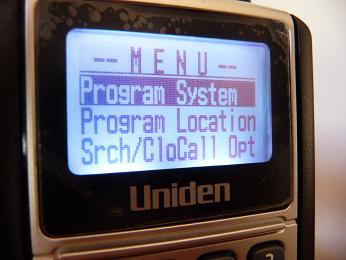
Push MENU
-MENU- will be displayed at the top of the screen, with Program System highlighted. As shown below.
Push YES
Select System will be displayed at the top of the screen
New System should be highlighted.
If New System is not highlighted - use the rotarty dial and turn it clockwise until New System is Highlighted.
Push Yes
Select System Type will be at the top of the screen.
P25 should be highlighted.
If P25 is not highlighted - use the rotarty dial and turn it clockwise unitl P25 is Highlighted.
As shown below.

Push Yes
P25 will be displayed at the top of the screen
Standard Trunk should be highlighted as shown below.

Push YES
The screen will now change and the following message will appear 'Confirm?' as shown below....

Confirm your selection by pushing YES
The Screen will then display System 1 at the top of the screen and Edit Name will be highlighted.
The same as the picture below.

It is recommended that you change the name of the System to one that can easily be recognised should you wish to edit it at a later date.
I would suggest changing it to MELB METRO.
While Edit Name is highlighted - push YES
Screen will now change and let you open the 'editing' menu to change the name of the system as shown below.

Screen will now look like the one above - at this point we want to enter new text and give the System a Name.
Lets call the new System - MELB METRO
To enter new Text - push the '.NO' button twice, this will clear the screen ready to enter new text.
To enter the 'text' - rotate the dial clockwise/anticlockwise and you will see letters/number/symbols appear under the cursor... rotate the dial until capital 'M' appears.
Then push the 6 button to move the cursor to the right...
Rotate the dial clockwise again until capital 'E' appears..Then push the '6' button again to move the cursor to the right.
Lets call the new System - MELB METRO
To enter new Text - push the '.NO' button twice, this will clear the screen ready to enter new text.
To enter the 'text' - rotate the dial clockwise/anticlockwise and you will see letters/number/symbols appear under the cursor... rotate the dial until capital 'M' appears.
Then push the 6 button to move the cursor to the right...
Rotate the dial clockwise again until capital 'E' appears..Then push the '6' button again to move the cursor to the right.
Repeat the process until MELB METRO has been entered.
Once the words MELB METRO has been completed - Push YES
---------------------------------------------------------------------
Hint/Tip
If you make a mistake - you can push the '.NO' button once or simply push the '4' button to go back to the previous entry.
If you push the '.NO' button twice it will remove ALL the text and you will have to start again.
----------------------------------------------------------------------
After you have pushed the YES button the screen will quickly display 'Processing Please Wait' and then return to the previous screen and Edit Name will be highlighted again.
You should have MELB METRO written across the top of the screen.
At this point here you have created the beginnings of a 'System' that is now called 'MELB METRO'.
To enter the frequencies we need to do one more thing - that is create a 'Site'.
-------------------------------------------------------------------
Hint/Tip
A site contains the relevant frequencies for the County/Region.
The System is like a main folder - sites are similar to 'sub folders' inside the main folder..
The System may be know as 'MELB METRO', its 'sub folders' or 'sites' are created so you can put in different locations. - for this example I am calling the site 'CBD REGION'.
In the 'CBD REGION' site I will put in ALL the relevant frequencies (Control Channels) for the 'CBD REGION' towers.
-----------------------------------------------------------------------------
Setting up a 'Site'.
While the screen is still displaying the words MELB METRO on the top of the display,
Once Edit Site has been highlighted - push YES
Select Site will be written at the top of the screen with New Site highlighted as shown in the picture below.

Push YES
The screen will then change let you edit the Site Name as shown below.
The screen will then change let you edit the Site Name as shown below.

Push YES
The screen will then go to the Edit Name Menu where you can now give the Site a Name as shown below.

Lets call the new Site - 'CBD REGION' .
To remove the pre-set text - push the '.NO' button twice. This will clear the screen ready for you to enter the new Text.
Use the same method as before when you entered the words MELB METRO, but this time enter CBD REGION
Once the Text has been entered and completed - Push YES
the screen will return to the previous Menu with 'CBD REGION' written across the top of the screen.
I would recommend allocating a Quick Key to the Site so you can turn it on or off.
While CBD REGION is displayed on the top of the screen, scroll the dial clockwise until SET QUICK KEY is highlighted.
Push YES.
Now select a number to allocate the site to a keypad number..
Use number 1.
Highlight 1 and push YES.
The screen will revert back to previous one with CBD REGION at the top of the display.
Using the rotary dial - turn clockwise until Set Frequencies is highlighted.
Once Set Frequencies is highlighted - Push YES
The screen will now display Sel Frequency at the top of the screen and New Frequency wil be highlighted as shown below in the picture below.

To enter a new frequency - Push YES
The screen will now change to let you input the frequency.
As shown below.

At this point you can type in your first frequency.418.3750
Once you have 'keyed' in the required frequency - Push YES
The screen will then display the entered frequency and give you some options including 'Locking out' and 'Deleting' the frequency.
As shown below.
(Photo below is for reference only - your screen should say 418.3750)
Once you have 'keyed' in the required frequency - Push YES
The screen will then display the entered frequency and give you some options including 'Locking out' and 'Deleting' the frequency.
As shown below.
(Photo below is for reference only - your screen should say 418.3750)

At this point we have no reason to select either of these options so using the rotary dial - turn it clockwise until New Frequency is highlighted as shown below.

Once New Frequency is highlighted - Push YES
Repeat the process again and key in the second frequency 419.0000
Repeat the process again and key in the second frequency 419.0000
Once you have 'keyed' in the second frequency - Push YES
The screen will then display the entered frequency again and give you the same options as before.
---------------------------------------------------------
You will have to repeat this process over and over again until ALL frequencies listed above are entered!!
Repeat the process again by scrolling down to New Frequency again and entering more Frequencies.
---------------------------------------------------------
This will take anywhere from a few minutes to half an hour, depending on your personal level of patience!
---------------------------------------------------------
This will take anywhere from a few minutes to half an hour, depending on your personal level of patience!
Once ALL frequencies are entered and you are happy with the results and the frequencies you have entered are correct - Push the SCAN button.
The scanner will now start scanning...
You should also see at the bottom of the screen beside the small letters SO:, the number 1.
This means the System you have created (Melb Metro) is active.
-------------------------------------------------------------
Hint /Tip
For those clever enough to notice, at the top right of the display, there should be a small bar graph.
When the signal is at full strength it will show around 5 bars..
If these bars are not showing or are very limited, you may have a weak signal.
Setting the P25 waiting time.
If you do not set this the scanner wont operate correctly and may miss entire conversations or replies.
Push Menu
-MENU- will be displayed at the top of the screen.
Program System will be highlighted.
Using the Dial - turn it clockwise until Srch/CloCall Opt is highlighted.
As shown below.

Push YES
A new Menu will open up on the screen with the title Srch/CloCall Opt written at the top of the screen.
Freq Lockouts will be highlighted.
Using the dial - turn it clockwise until P25 Waiting Time is highlighted as shown below.

Push Yes
P25 Waiting time will be displayed at the top of the screen.
Using the dial - turn it clockwise unitl 400 ms is highlighted as shown below.

Push Yes
Screen will revert back to previous MENU.
At this point the scanner is ready to go.
If all the frequencies required (Control Channels ONLY) have been entered and the P25 Waiting time is set correctly - the scanner should work perfect.
At this stage - Push the SCAN button again and the scanner should start scanning for the MELB METRO System in your area.
Make sure that the screen says ID SEARCH!!! It will not work if ID SCAN is displayed. Default is ID SEARCH.
Please note!
The instructions I have given are as 'Basic' as possible without trying to cause too much confusion.
In doing so I have left out some extra options including how to create a 'Group' and how to store Talkgroup IDS in a group.
This will be covered later.
I am simlpy trying to get your new scanner up and running so it does not seem like an expensive paperweight.
If you don't hear anything straight away - don't give up.
Do a few basic checks.
Look at the small Bar graph on the top right hand side of the screen - does it have full signal.?
Double check your frequencies again.. are they entered correctly - one number out can cause problems!
Do you have Close Call activated - One would think not if your only a novice!
Double check your P25 waiting time.
If your still having trouble send me an e-mail and I will try and resolve the problem and put the 'cure' up on this Blog page.
Subscribe to:
Posts (Atom)
-
 Sentinel Software. The following information and instructions are based on a Windows 7 operating system. Sentinel version - UBCDx36 is f...
 -
NSW PSN (Public Safety Network) Site map Click on the link below. https://www.google.com/maps/d/edit?mid=1IOWQNvnJ_jeDEcaahhGW7x0EZmINDqJF...
-
By now some of you may be already aware that there is now the option to add DMR - NXDN and Pro-voice to your UBCD436PT and UBCD536PT Scanner...
